


If you run a store, café or pre-packed food outlet in Armenia on the Paloma365 cloud system, the logical next step is to connect weighing equipment. MERTECH M-ER 725 and M-ER 727 scales with label printing fully support Paloma365: the product catalogue is maintained in one system, items are uploaded to the scale's memory, and labels are printed right at the packing station. Below is a practical guide from MERTECH experts: which models are suitable, what you need to know about label printing, and how to complete the network connection step by step.
The Paloma365 + MERTECH M-ER 725/727 combination solves a classic retail task: a single product catalogue, fast PLU upload and on-the-spot label printing. Less manual entry means fewer errors in prices and weights.
Which MERTECH scales are supported
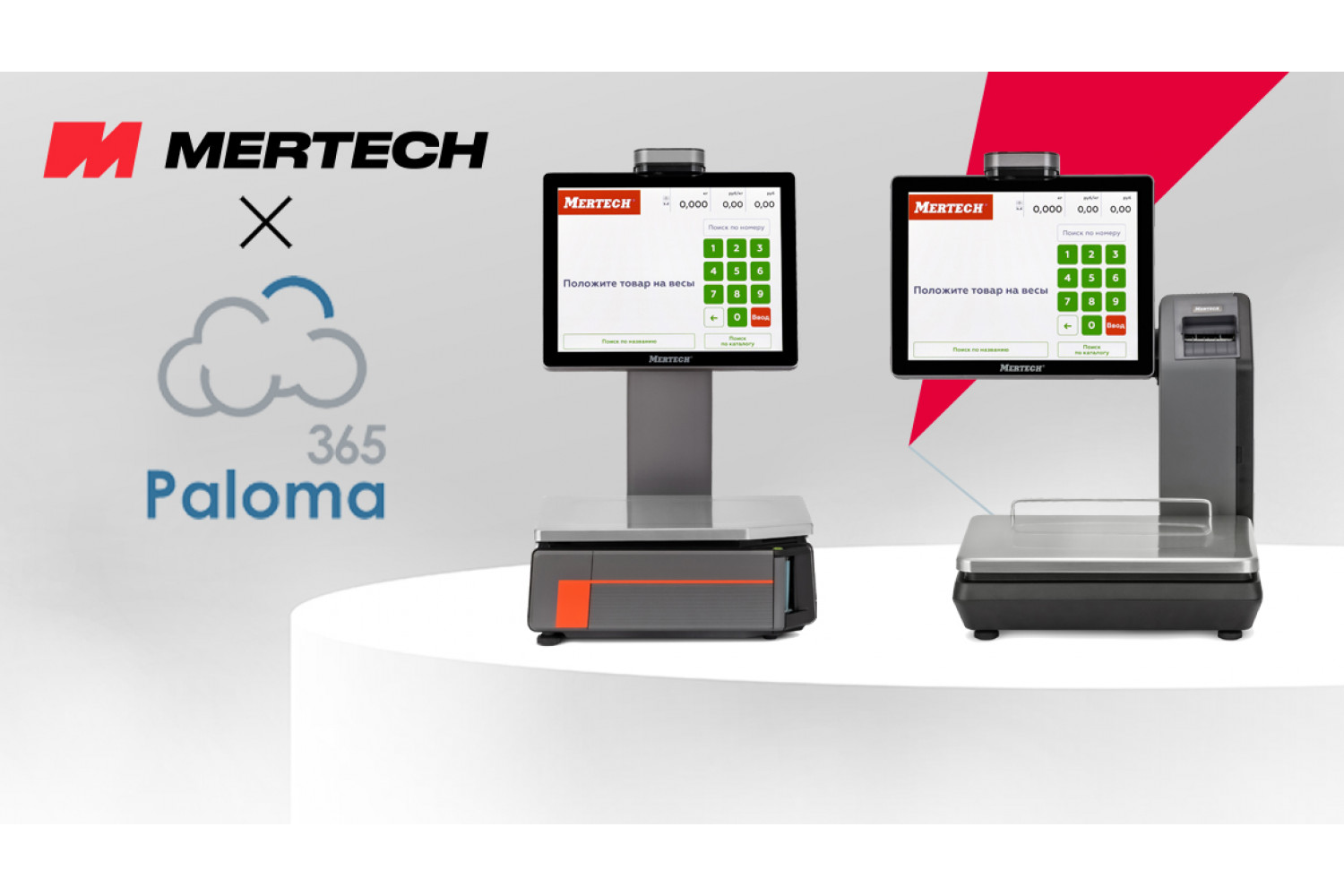
Paloma365 works with MERTECH label-printing scales from the M-ER 725 and M-ER 727 series. The two series are close in functionality and electronics — they differ in housing design and printer placement. Both come in versions with a maximum weighing capacity of 15.2 kg or 32.5 kg: this range covers most small-business tasks — packing, pre-sale packaging, deli and ready-to-eat food handling.
MERTECH M-ER 725
The printer is housed inside the display stand. The label emerges in a convenient zone and the operator receives it straight into hand, speeding up the "weigh — apply — hand over" cycle. The classic stand design suits deli and packing departments where labels are printed continuously.
MERTECH M-ER 727
The printer sits in the base of the housing, under the platform. This reduces the footprint and makes the scale more compact for a checkout area or a sales floor with limited space. In printing capability and data exchange the model matches the M-ER 725.
Both series offer versions with a 15-inch display, USB, Ethernet and Wi-Fi interfaces, as well as VISION-AI modifications — intelligent product recognition that speeds up item selection when packing fruit and vegetables. Choosing between the series is a matter of workplace ergonomics, not compatibility: both work with Paloma365.
Label printing and handling weighed goods
The built-in thermal printer produces labels on thermal paper without ink or cartridges — all you need is a roll of label stock. Roll replacement is quick thanks to the convenient loading system, and the printhead is rated for long service life. For a business this means minimal consumable costs: apart from the label roll, nothing else needs to be purchased.
The scales let you:
- print price tags and labels for packed goods right on the sales floor or in the back room;
- transfer product information from the catalogue onto the label: name, price, barcode, ingredients, shelf life — depending on the configured template;
- simplify packing control and speed up customer service at the checkout.
The key point is the barcode on the label. A weighed item is encoded with a prefix that tells the checkout software this is a weight-based item and that the code carries the weight or the amount. That is why, when setting up the integration, the scale's barcode format must be aligned with the checkout settings in Paloma365 — see step 4 below.
What Paloma365 is and why connect scales to it
Paloma365 is cloud software for automating small and medium businesses. It helps maintain inventory records, control sales, manage the warehouse, work with reports and analyse performance. For businesses in Armenia the practical advantages matter: fast deployment without your own server, access from different devices, and convenient employee role management — from cashier to chain manager.
Connecting MERTECH scales to Paloma365 solves three tasks at once:
- A single product catalogue. Items, prices and barcodes are maintained in one system instead of being entered manually into every device.
- Fast PLU upload. Product records are transferred to the scale's memory over the network in minutes; a price change in the catalogue is immediately reflected on the label.
- On-the-spot label printing. The packer weighs the product and immediately gets a finished label — no trips to the computer and no re-typing data.
The result is less manual entry, fewer price-tag errors and faster operations with the weighed range. This is especially noticeable in neighbourhood stores, delis, cafés and outlets with pre-packed products, where the range and prices change frequently.
How to connect M-ER 725/727 to Paloma365: step-by-step guide
The connection is made over the local network: you enter the scale's parameters in Paloma365, after which products can be uploaded to the device memory. The scales join the network via Ethernet or Wi-Fi — choose the channel based on the outlet layout: a cable is more reliable for a fixed packing station, Wi-Fi is more convenient if the scale is moved around.
Step 1. Prepare the connection data
You will need:
- the scale's IP address on your local network;
- the connection port;
- the password — used for access and data exchange.
If network parameters are managed centrally, ask the system administrator or the person responsible for the outlet's network for the IP address in advance. A practical tip: assign the scale a permanent IP address (static, or reserved in DHCP) so the connection does not get "lost" after the router reboots. Make sure the scale and the computer running Paloma365 are on the same subnet.
Step 2. Open the equipment settings in Paloma365
- Go to the "Equipment" section in the Paloma365 settings.
- Open the "Scales" subsection.
- Select "MERTECH electronic scales".
Step 3. Upload the products (PLU) to the scale
- Click "Load PLU".
- Enter the scale's IP address, port and password.
- Click "Load scales" and wait for the operation to complete.
If the range is large, the upload may take a little longer — that is normal. After a successful upload the scale is ready to print labels for catalogue products. Verify the result with a test weighing: select an item, print a label and check that the name, price and barcode are correct.
Step 4. Configure the barcode format and prefixes
So that weighed and piece goods are processed correctly in accounting and at the checkout, set the required parameters in the scale properties:
- enable "Automatically upload product PLU" if you update the catalogue regularly — changes will then reach the scale without manual operations;
- in the "Barcode format" section, set the prefixes for weighed and piece goods;
- click "Save" to apply the settings.
The prefixes must match the checkout settings in Paloma365: if the till expects a weight code with one prefix while the scale prints another, the item will not be recognised at sale. After saving, run a test sale of a weighed item through the checkout — this is the final check of the whole chain.
FAQ
Is internet required for the scales to work with Paloma365?
Data exchange between Paloma365 and the scales runs over the outlet's local network, so the scales keep working during temporary internet outages. However, internet is needed to access the cloud catalogue, update products and view reports. We recommend a stable connection for the outlet.
Can several scales be connected to one system?
Yes. Each scale connects with its own IP address and is added in "Equipment → Scales" as a separate device. The product catalogue is shared, and the PLU upload is performed to each device — convenient for outlets with several packing zones or for a chain of stores.
What should I do if the PLU will not upload to the scale?
Check in order: the correctness of the IP address, port and password; whether the scale and the computer are on the same network; whether the scale is powered on and connected; whether a firewall or antivirus is blocking the exchange. If the parameters are correct but the connection fails, contact MERTECH support at +374 41 50-15-04 — our specialists will help diagnose it.
What consumables are needed for label printing?
Only a roll of thermal label stock: no ink, toner or cartridges are required because printing is thermal. Choose the roll size and label width for your scale modification — ask MERTECH managers. Spare rolls and other consumables are conveniently ordered together with the equipment.
How do the 15.2 kg and 32.5 kg versions and the VISION-AI option differ?
The weighing capacity is chosen for the range: 15.2 kg is enough for deli, gastronomy and packing; 32.5 kg suits heavier items and bulk packing. The VISION-AI version adds intelligent product recognition, speeding up item selection when working with fruit and vegetables. All modifications work with Paloma365 in exactly the same way.
Conclusion
The integration of Paloma365 with MERTECH M-ER 725/727 scales builds a convenient workflow for weighed goods: the catalogue lives in one system, items upload to the device quickly, and labels print right at packing. Setup takes four steps and requires no programmer. To choose a model for your retail format — 15.2 or 32.5 kg, the classic version or the VISION-AI option — contact MERTECH: +374 41 50-15-04, info@mertech.am. Prices in Armenian drams (AMD, ֏) and delivery are calculated individually; self-pickup is available in Yerevan, 41/2 Shirazi Street. Details and directions are on the contacts page. To complete your outlet's setup, also see trade scales, electronic scales and label printers in the MERTECH catalogue.